FastLink and Configuration Tool – New Features/Enhancements
Persistent Primary Action Button
FastLink 4 now supports a configurable sticky primary action button that keeps the primary call to action persistently visible on all screens that display account lists. When enabled, the account list scrolls independently while the primary action button remains anchored and accessible, eliminating the need to scroll to complete the action. Secondary and tertiary buttons appear only when the user scrolls to the bottom of the screen, maintaining a clear visual hierarchy.
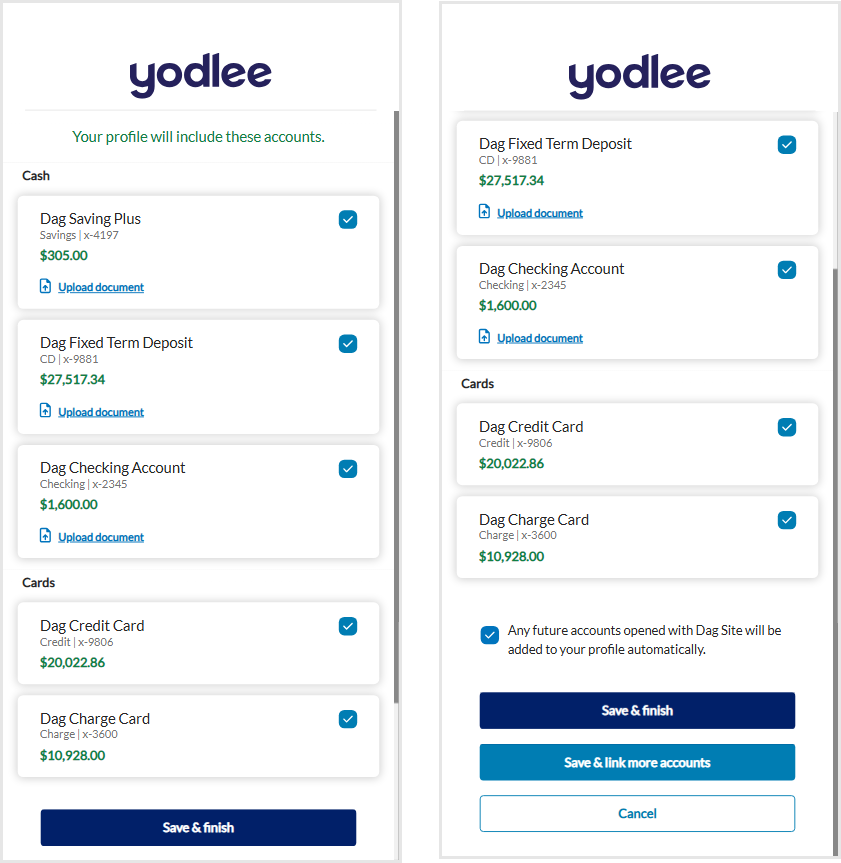
A toggle labeled Sticky primary action button is available in the Configuration Tool for each applicable screen and is disabled by default for all customers. The following image shows the configuration available for the Account Summary screen.
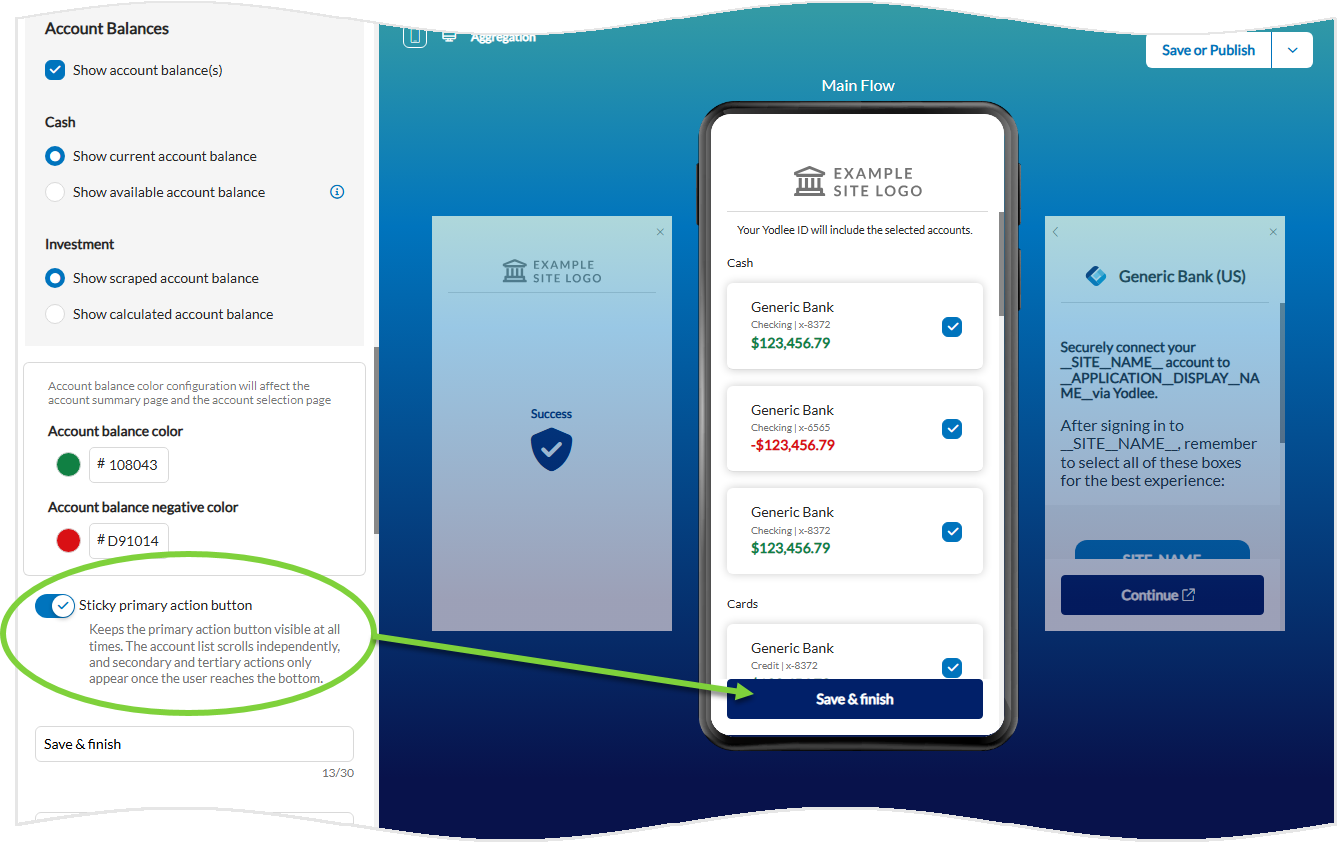
iframeResize=false. If iframeResize is set to true, the sticky behavior will not be applied.PII Input Restriction Across User Input Fields
FastLink 4 now includes enhanced real‑time input validation to restrict entry of personally identifiable information (PII) across user‑facing text fields. The validation logic detects and blocks common PII patterns, including sequences of more than four consecutive numbers, date formats embedded within text strings, and other numeric patterns associated with SSNs, FANs, and emails.
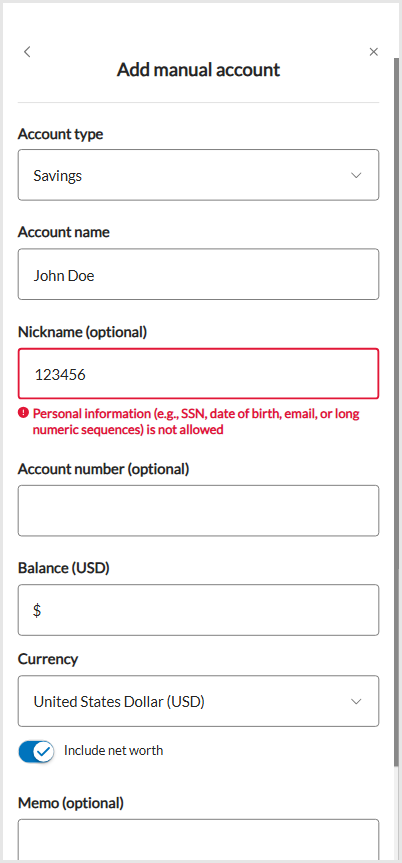
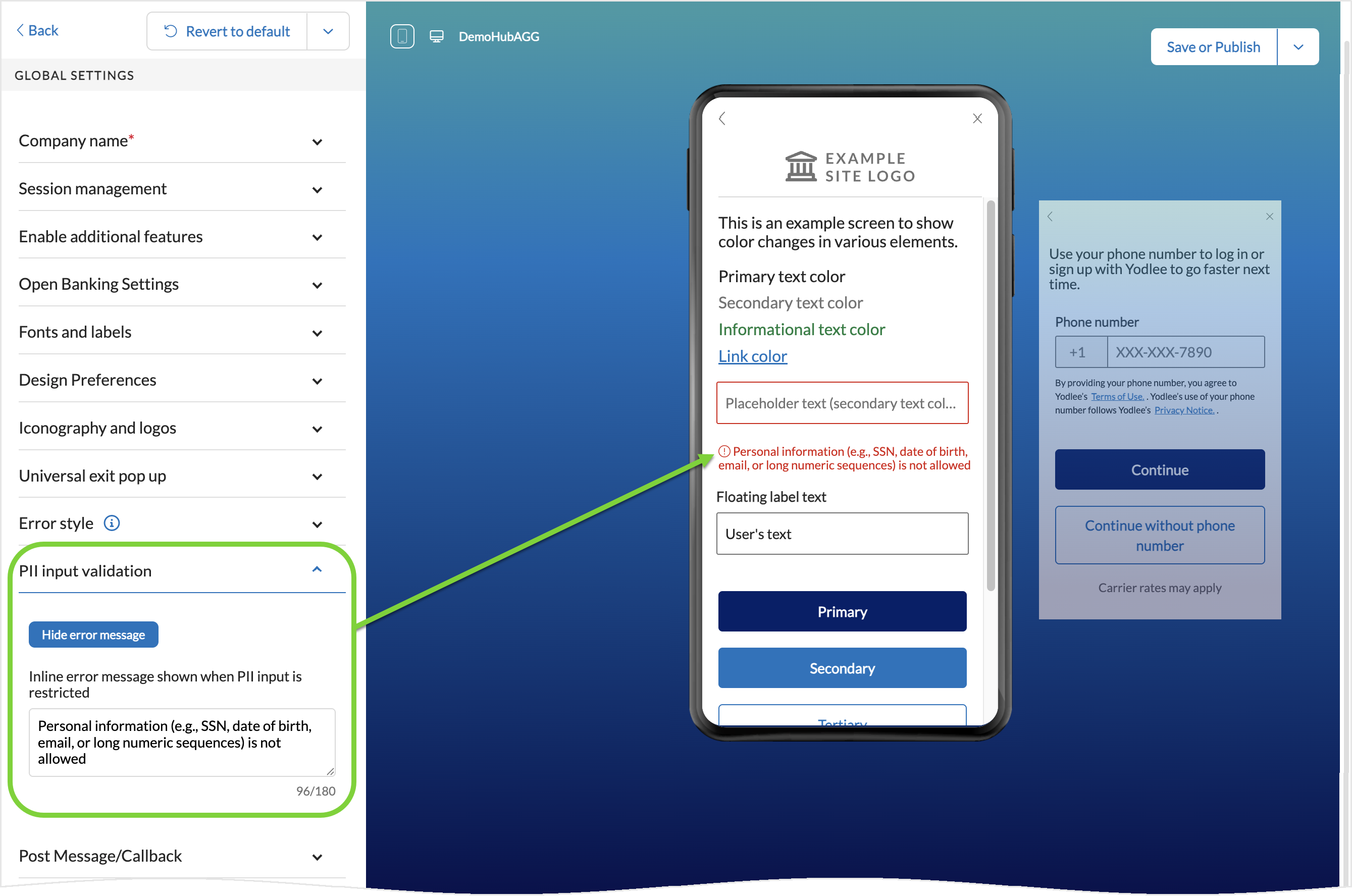
As the consumer types, an inline error message is displayed when a restricted pattern is detected, prompting the consumer to revise the input before submitting. The default error message reads: “Personal information (e.g., SSN, date of birth, email, or long numeric sequences) is not allowed.” and is configurable per customer. Fields such as username, password, MFA inputs, routing and account numbers, balance fields, ZIP codes, and other numeric‑only inputs are excluded from these validations.
The image below shows how the error message appears on the Add Manual Account screen when a restricted numeric sequence is detected.
This feature is disabled by default for all customers and can be enabled on a per‑customer basis as needed. Once enabled, the error text can be customized in the Configuration Tool by navigating to Global Settings → PII input validation section.
Yodlee APIs – New Features/Enhancements
Persistent Primary Action Button
The April release introduces an update, for the Aggregation flow customers, that standardizes account‑name outputs when data providers site does not have the account name for any of the accounts.
The platform now derives an account name using the structure <Site Name> - <Account Type>, resulting in human‑readable labels. The enhancement reduces occurrences of blank or null account‑name fields in Yodlee APIs.
For customers who rely on the accountType value returned in Yodlee API responses, there is no change to the existing accountType logic. This enhancement only affects the way the account name is constructed, not the account‑type attribute itself.
As a result, there may be instances where the account type shown within the derived account name differs from the accountType attribute in the API response. For example, the GET /accounts API may return an entry such as "accountName": "DagSite - Health" while the corresponding accountType value remains HEALTH_INSURANCE.
PFM implementations may also observe this updated account‑name formatting within the PFM FinApps experience.
Impacted API Method and URLs: